Professional users
Watch from the start until approximately 01:40 for the Professional activation section.

MindManager resource
A resource-only guide for activating MindManager, creating the correct account, using licence keys and setting up the Enterprise License Administration Portal.
This page brings the existing Mindlogik licence tutorial into the new resource hub.
Video guide
Use the video guide to set up your copy of MindManager. Professional users should watch the first part; Enterprise users should continue into the administrator portal section.
Watch from the start until approximately 01:40 for the Professional activation section.
Watch from approximately 01:40 onwards for Enterprise and administrator portal guidance.
MindManager Professional users
The normal activation path is to install MindManager, sign into or create a MindManager account, and then add the relevant licence or subscription entitlement.
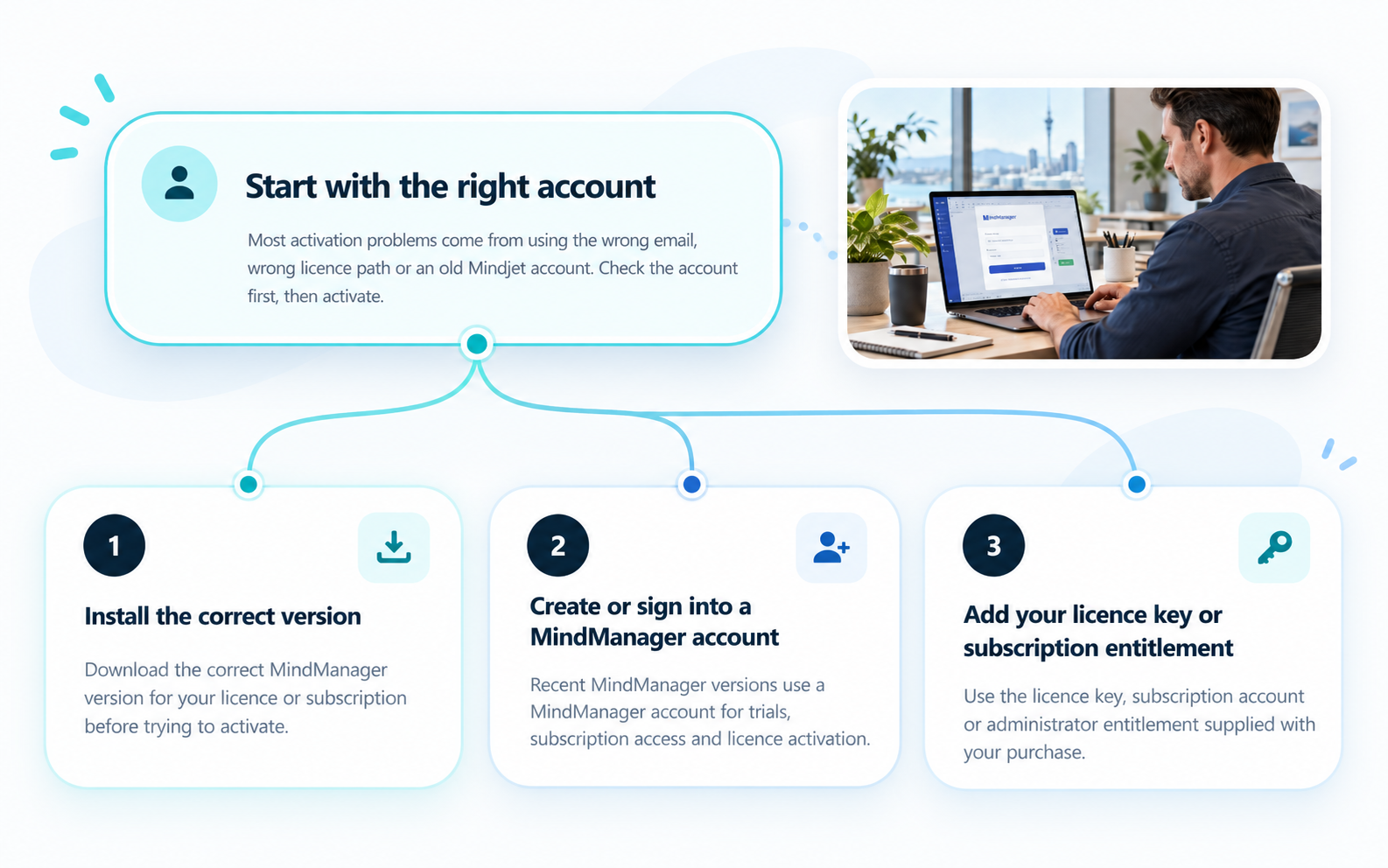
Download the correct MindManager version for your licence or subscription before trying to activate.
Recent MindManager versions use a MindManager account for trials, subscription access and licence activation.
Use the licence key, subscription account or administrator entitlement supplied with your purchase.
MindManager Enterprise users
Enterprise customers follow a different setup path because the first administrator must activate the License Administration Portal before users can be managed centrally.
Enterprise administrator portal
Enterprise customers use a different activation process. The first administrator uses the special activation link in the company licence certificate.
Copy and paste the link into the browser if clicking directly from the certificate does not work.
The licence manager can find the special License Administration Portal activation link in the company licence certificate.
Do not click directly on the link in the licence certificate if it does not work. Copy and paste the activation link into your browser.
The future administrator creates a new account by entering an email address and creating a password.
A confirmation email from noreply@mindmanager.com is sent to the administrator. The account is completed by clicking the verification link.
Once logged in successfully, the administrator can return to the License Administration Portal at cloud.mindmanager.com/admin.
Important Enterprise notes
The License Administration Portal activation and reset process can affect administrator access, so it is important to understand the sequence first.
The Enterprise portal activation link can be used only once for first-time activation.
The person who activates the License Administration Portal becomes the administrator and can invite other administrators.
MindManager Support may not be able to see whether the portal has already been activated or who the administrator is.
A reset generates a new activation link, but it deletes existing administrators from the License Administration Portal.
MindManager account questions
Since MindManager Windows 21 and MindManager Mac 13.2, a MindManager account is needed to start a trial or register and activate a licence.
The MindManager account is your unique identifier and is used to activate trials, subscription access and licence keys.
The account can provide access to perpetual licences, subscriptions, support services and included cloud features such as Snap, Publishing, Co-Editing or Teams.
In most cases, older Mindjet Connect, Mindjet Files, Mindjet ID or Maps for That credentials will not work. A new MindManager account is usually required.
Check spam filtering, allow noreply@mindmanager.com and use the resend email option. Give the email a few minutes to arrive.
MindManager may ask you to sign in again periodically. After the first product activation, the licence key normally does not need to be entered again.